How to Display Tracking Alerts
ShopFloorConnect has the ability to track - for maintenance purposes - the number of cycles on expensive tooling items such as dies, molds, and fixtures. Each item can be given a preset value equal to its maintenance interval, and SFC will provide an indication whenever an item approaches or exceeds this value.
To set up this feature, refer to the instructions for setting up the Tool Tracker.
In addition to showing the tracking status under the Tool Tracker tab, these alerts can also be shown on the main Equipment Summary Screen to provide an obvious indication when an overdue item is running in a machine:
1. Click the Show Page Settings at the bottom of the Equipment Summary page.
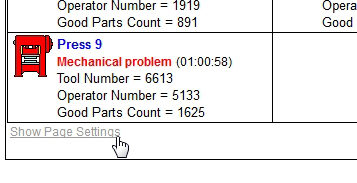
2. Click the Display Tracking Alerts checkbox. If you wish, you may then click the "Hide Page Settings" link to re-hide the selections.
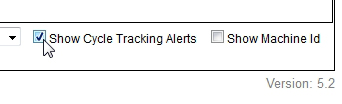
The Equipment Summary will now show tracking alerts for the currently running items for the machine types that have tracking enabled.
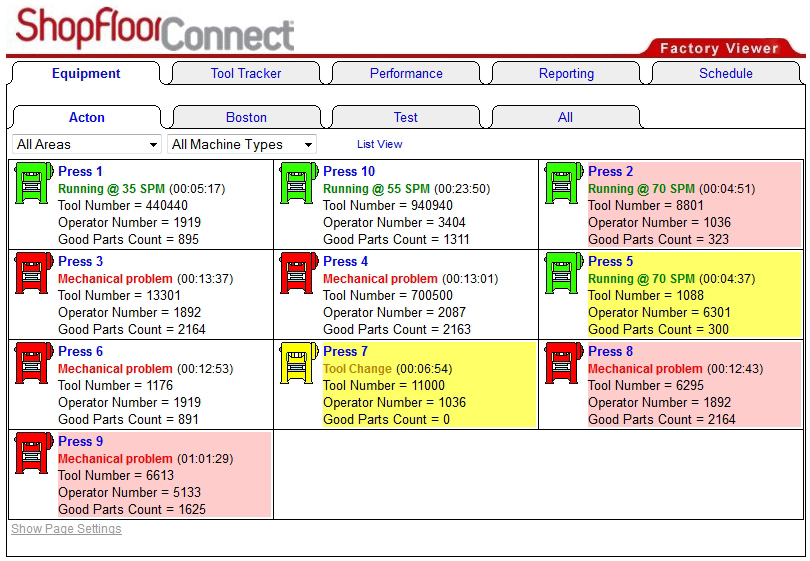
Equipment Summary showing Tracking Alerts in Icon View. Click for a larger image.
If an overdue (>100% of preset) item is running in a machine, the background of the cell for that machine will turn red if you're displaying the Equipment Summary in the "Icon View". If the item is within 90% of its preset (in other words, it not overdue, but getting close), the background turns yellow.
If you're displaying the Equipment Summary using the "List View" option, the background of the table row changes color when the preset is exceeded/close (see below).
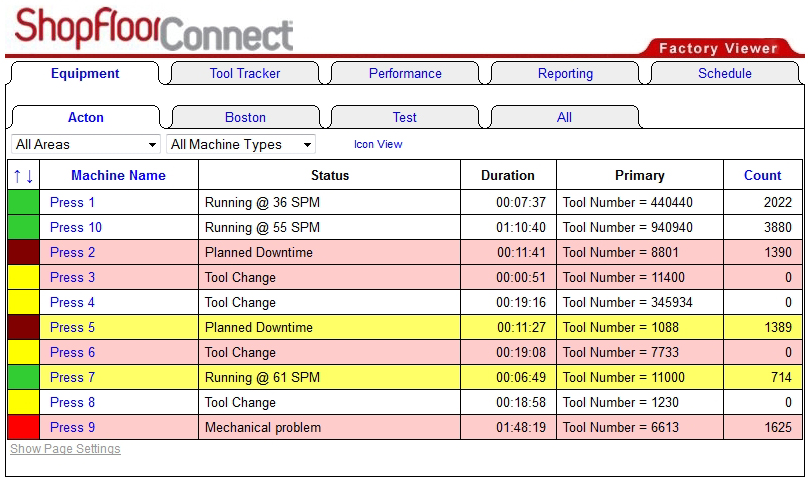
Equipment Summary showing Tracking Alerts in List View. Click for a larger image.