SFC Security Instructions
Users and Security Authorizations
ShopFloorConnect requires each user to log-in. Once logged in, users will have editing privileges according to the
settings in their security profiles.
Adding a New User
To add a new user, you must log in to the ShopFloorConnect Administrator with "Administrator Security" authorization.
1. Click on the "Security" tab to go to the Log-Ins page.
Fill in the fields at the top of the page with the new user name, the user's real name, and the user's password.
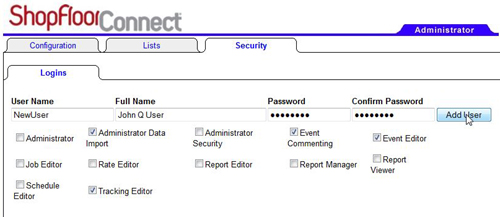
Figure 1 - Adding a New User
2. Each user's security profile consists of up to 12 'authorizations'. Each Authorization allows a user to edit or change specific items within ShopFloorConnect. Simply check the boxes next to the authorizations that you wish to provide to the new user. When you are finished, click the "Add User" button.
Here are the security Authorizations/Groups:
- Guest – While not technically a group, a guest is a user (with a username and a password) that has not been given any permissions.
Such a user will be granted read-only access to the Factory Viewer. In order to get past the log-in screen and into the Factory Viewer,
a user must have at least “guest” access. We will ship SFC with a default “guest” account (User name: Guest, Password: Guest) that can
be deleted by the user.
- Tracking Editor – Gives the user the ability to make changes in the Tracking tab
- Schedule Editor – Gives the user the ability to make changes under the schedule tab
- Job Editor – Allows the user to add/change the scrap count values on both the Machine Detail and Job List tabs
- Rate Editor – Users will have the ability to edit the measured and ideal rates under the Rates tab
- Event Editor – Users with this permission will be able to reallocate time in the Event Log
- Event Commenting – Users with this permission will be able to add and edit comments in the Event Log (but not reallocate time)
- Report Viewer – Users will be able to go into the report tab and run ad-hoc reports, but not save filters. They will also have access to the Stored Reports tab to view reports stored in the SFC database.
- Report Editor – Users will be able to run ad-hoc reports and save filter settings, but will not have access to the Report Manager tab. Report editors will be allowed to modify the delivery settings.
- Report Manager – Full access to the report tab including the Report Manager tab.
- Administrator – Access to the SFC Administrator, with the exception of the Security tab. Unlike LETS, SFC Administrators do not get automatic security access to anything in the Factory Viewer. These permissions will have to be selected separately for the user to gain access.
- Administrator Security – These users have full access to the Administrator, including the Security Tab
- Administrator Data Import – Users will have the ability to use the SFC Data Import function
- Event Commenting – These users will be able to edit and attach comments to events in the event log
Security authorizations are mostly non-overlapping. For example, instead of Administrators (which are typically IT people) being able to change everything, they will only have editing permissions for the SFC Administrator, with read-only access to the Factory Viewer (unless they also have the various Factory Viewer privileges). The exceptions to this are the three Reporting authorizations (where anyone with Report Manager authorization inherits the privileges of the Report Edit and Report Viewer authorizations, while the Report Editors inherit Report Viewer privileges), and Administrators where anyone with Administrator Security or Administrator Data Import permission inherits Administrator access.
Changing Privileges, Resetting Passwords, and deleting Users
To reset a password or edit a user's security privileges, click the "Edit" link in the user's profile. The user profile will open and allow you to make
changes. When you are done, click the "Update" link.

Clicking the "Edit" link will allow you to make changes to the user's security profile.
To delete a user, click on the "Delete" link, then the delete link again to confirm.